Ring rendering: how to render an engagement ring from your CAD
By HeyGema™ · Updated · 6 min read
In short
To render a ring, start from the CAD model or a shaded screenshot, render a front view and a ¾ or side view, and check that the center stone, prongs and band match the model. In HeyGema™ you upload a .3dm, .obj or .glb file or a screenshot, pick the angle, the gold and the stones, and get a ring render with no lighting setup. Rings are the part of jewelry rendering clients ask for most.
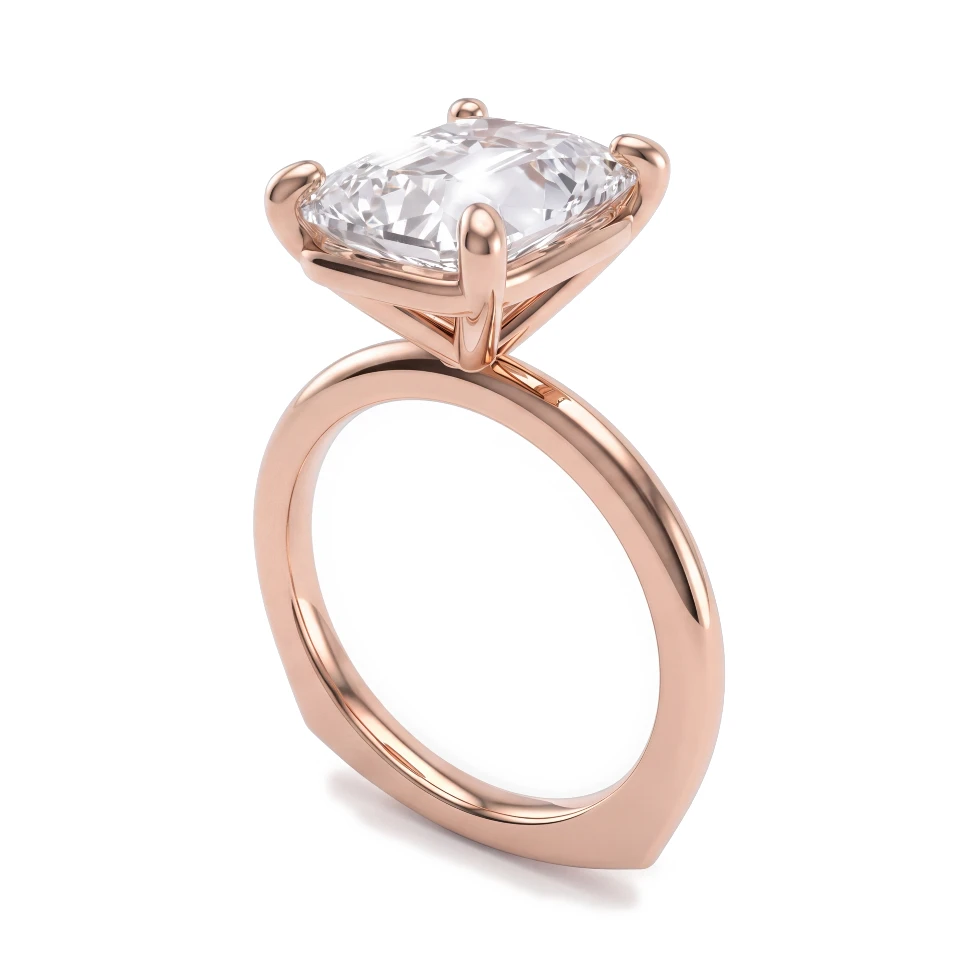
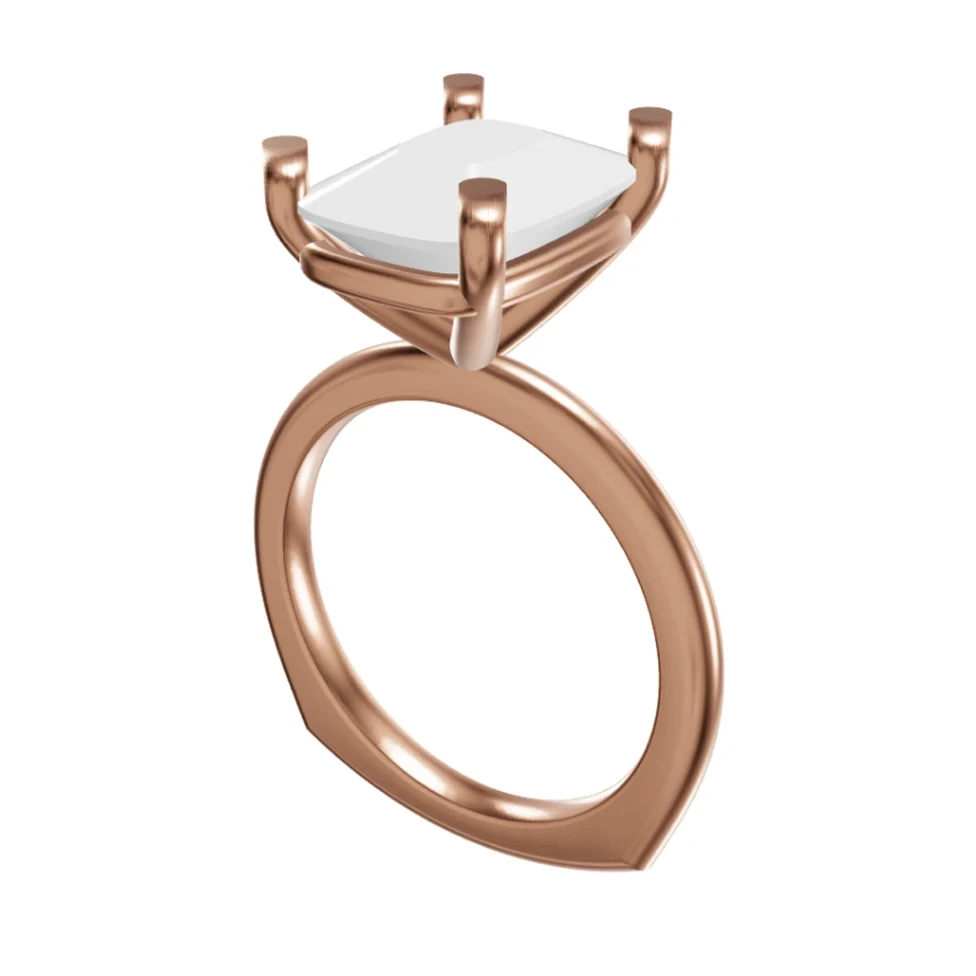
Most renders a jeweler sends are of rings, and most of those are engagement rings. The client is about to spend a lot on something they've only seen as a CAD view, so the render has to answer their questions before they ask them: how big the stone looks, how high it sits, and what the band looks like from the side.
The views that sell a ring
- Front: the stone face-up, the way the wearer sees it on the hand.
- ¾: the face and the profile together. Most ring product pages lead with this view.
- Side: the setting height, the gallery and the basket under the stone. A hidden halo or a bridge only shows from here.
- Top: the outline of the center stone and the layout of a halo or pavé.
For a bridal set, render the engagement ring and the band together from the side. Clients want to see the band sit flush against the ring.
Getting the center stone right
The center stone is the first thing the client looks at. A diamond should show dark and bright facets with small flashes of color, never an even white like glass; see how to make diamonds look real in renders. The shape comes from your CAD, so a cushion stays a cushion. For a colored center stone, pick the exact shade you're quoting: a cornflower sapphire and a royal blue sapphire are not the same stone to a client.
Prongs, halos and pavé
Small parts are where ring renders go wrong. Count the prongs in the render against the CAD, check that every halo stone is there, and look at the pavé all the way around the band. With a 3D file in HeyGema™, open Parts to see what was found as stones and metal, and mark anything that was missed before you render.
Metal: yellow, white, rose and two-tone
Pick yellow, white or rose gold for the whole ring, or give each metal part its own gold for a two-tone piece, such as a white gold head on a yellow gold band. To show the client options, use Compare to render the same ring in up to 4 metals or stones at once.
How to render a ring in HeyGema™
- 1
Upload the ring
Open render.heygema.com, sign in and drop a .3dm, .obj or .glb file, or a shaded screenshot from your CAD program.
- 2
Check the stones
With a 3D file, HeyGema™ finds the center stone and the side stones. Open Parts to fix anything it missed.
- 3
Pick the angle
Click Front, Side, Top, ¾ or Back, or turn the model yourself. You can render up to 4 angles of a 3D file in one go.
- 4
Choose the gold and stones
Pick the metal, then the center and side stones, and add notes such as milgrain or a brushed band if you need them.
- 5
Render and send
Press Render, download the full-size image or share a link with your client.
Ring rendering mistakes
- Sending the top view only. It hides the setting height, which is what clients ask about after the ring arrives.
- A small, blurry screenshot. Take it large, in a shaded view, with the ring filling most of the frame.
- Stones left unmarked. A side stone the tool didn't find renders as metal. Check Parts first.
- No sizes with the render. A render doesn't show scale. Send the carat weight, the stone size and the finger size with it.