Turn your CAD into photoreal renders
Upload a CAD screenshot or a 3D file (.3dm, .obj or .glb), pick your metal and stones, and get a client-ready render. No rendering software or skills needed. 100% free.
No credit card · 100% free

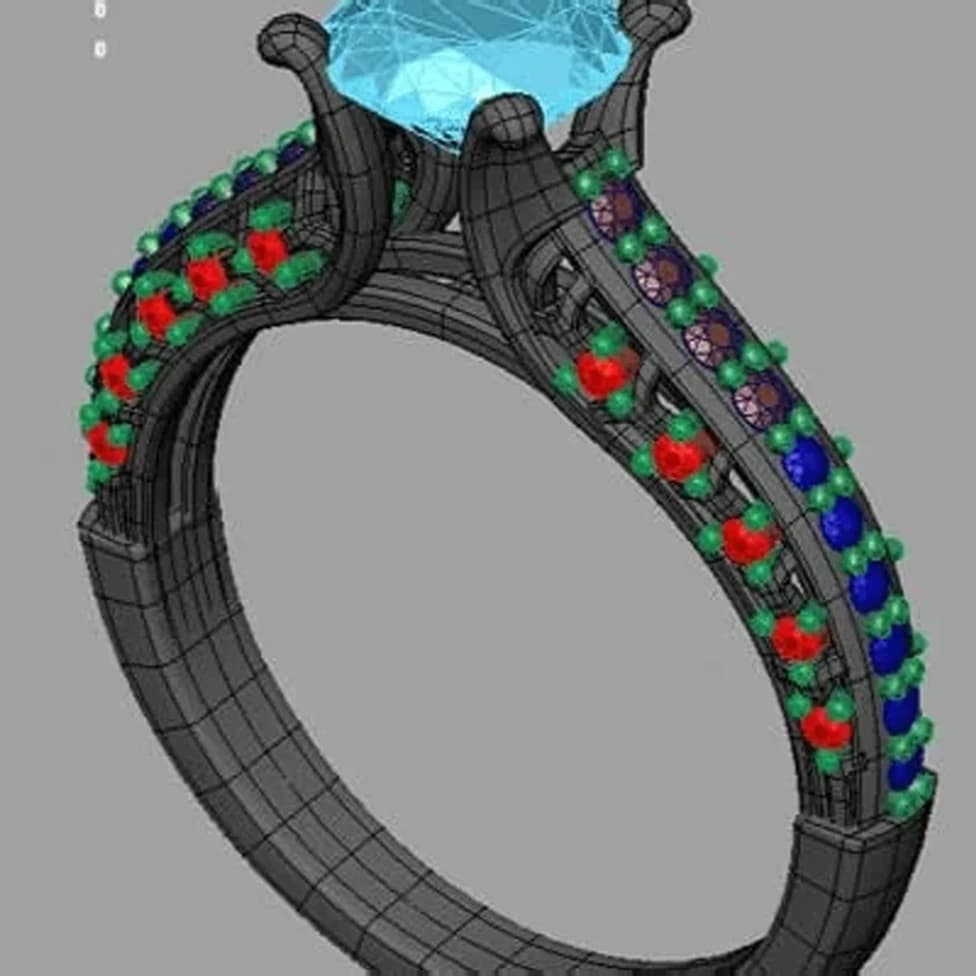 CAD
CAD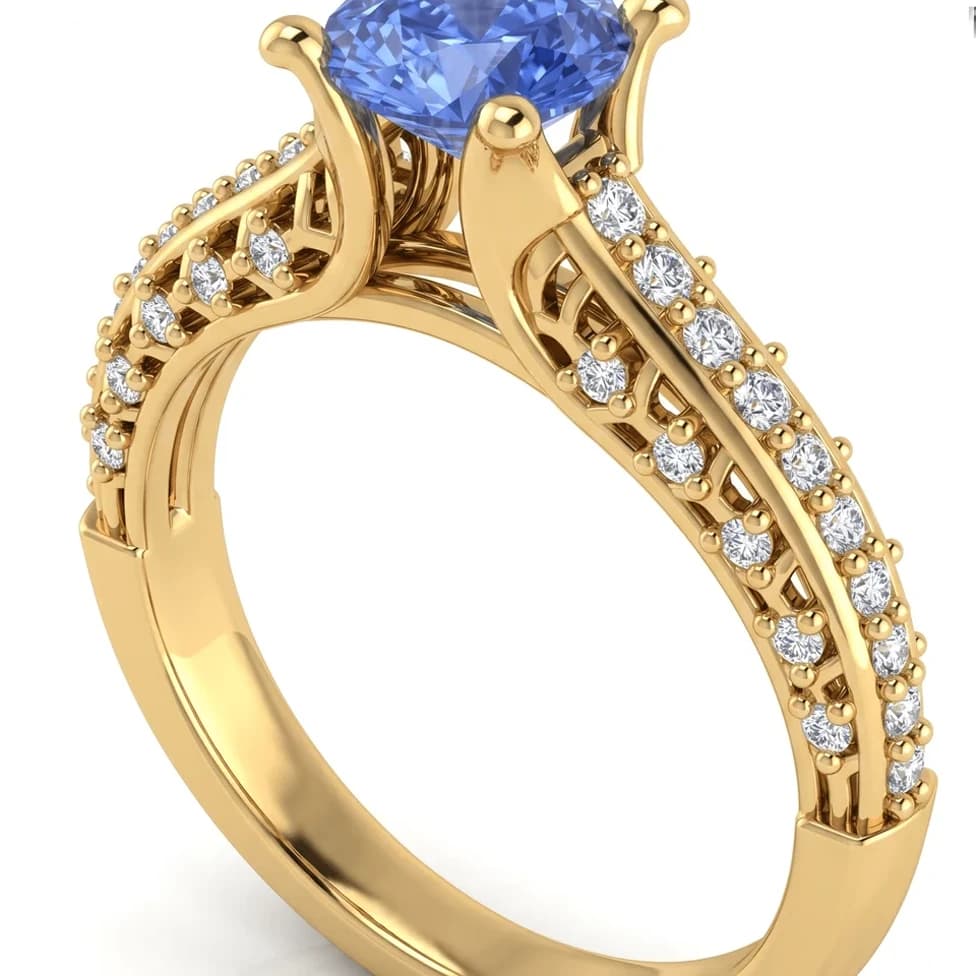 Render
Examples
Real CAD in. Real renders out.
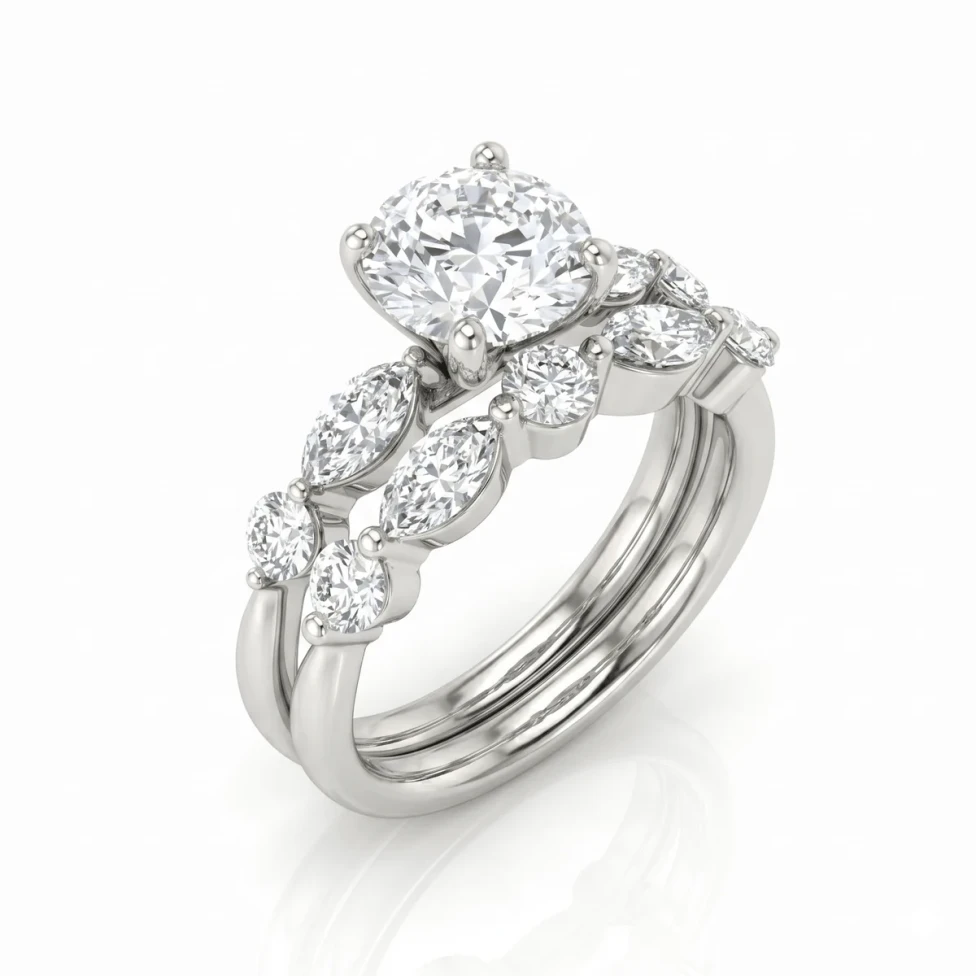
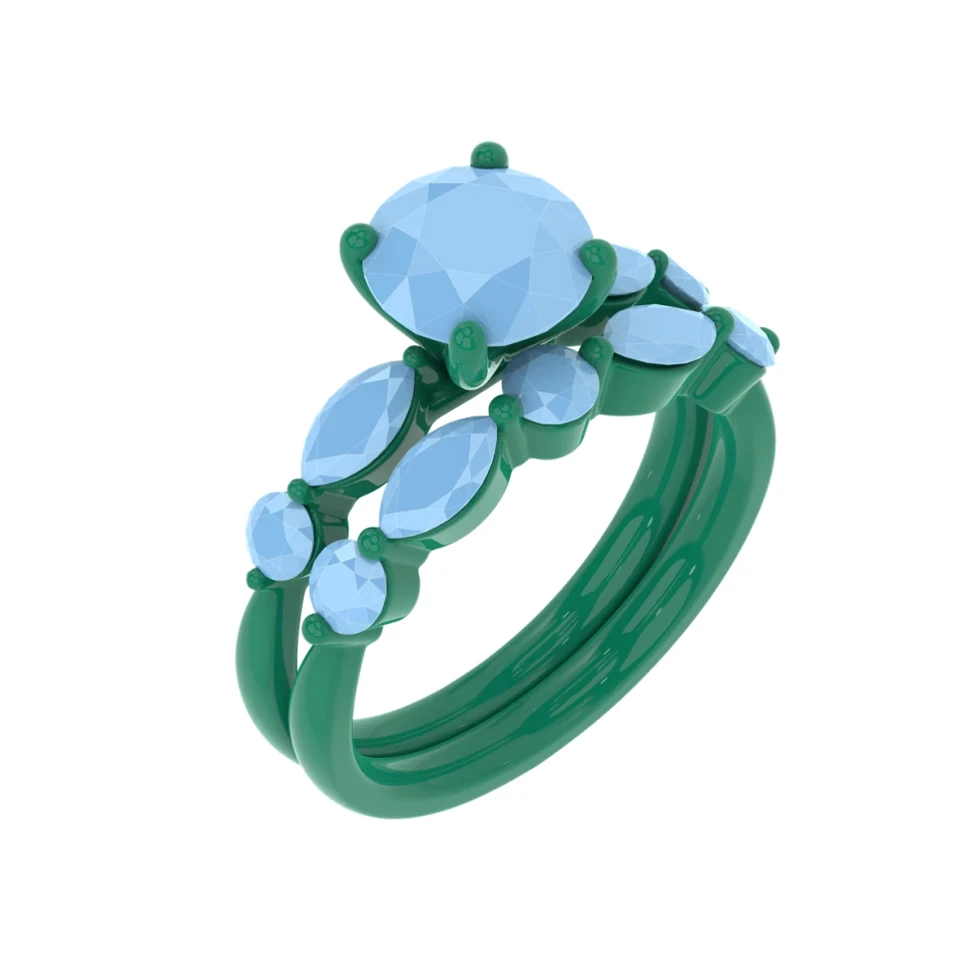
Drag the slider to compare each CAD with the render HeyGema™ made from it.
Bridal
Marquise Bridal Set
HeyGema™ so far
- renders made
- 1,536
- users
- 552
- countries
- 42
Two ways to start
Start from a screenshot, or from the 3D file itself
Same steps, same materials, same quality. Use whichever you have on hand.
Upload a screenshot
Any shaded view from Rhino, Matrix, MatrixGold or your CAD software of choice. The render keeps the angle you captured.
PNG · JPG · WebP
Drop in your 3D file
Pick Front, Side, Top, ¾ or Back in one tap, or turn the model freely. HeyGema™ sorts every part into metal and stones for you.
.3dm, .obj, .glb
We don't save your 3D files. They stay on your computer.
How it works
From CAD to client-ready in four steps
- 01
Add your design
Drop in a screenshot of your CAD or a 3D file (.3dm, .obj or .glb).
- 02
Choose your angle
With a 3D file, tap Front, Side, Top, ¾ or Back, or turn the model yourself. Screenshots keep the angle you captured.
- 03
Pick metal and stones
Yellow, white or rose gold, then the centre stone and side stones. Add details like milgrain or a brushed finish.
- 04
Render and explore
Get your render, try variations in words to show your client something new, and download the ones you like.
Why HeyGema™
Studio-quality renders. Zero cost.
Show clients exactly what they're buying before anything is cast, without a render artist or render software.
$0
Free forever. No per-image fees and no software subscription.
0 installs
Runs in your browser on desktop and phone. No plugins or downloads.
Any angle
Render a 3D file from a preset or from any view you set.
In words
Show a new idea by typing it. No re-modeling.
Variations in words
One design, every idea your client wants to see.
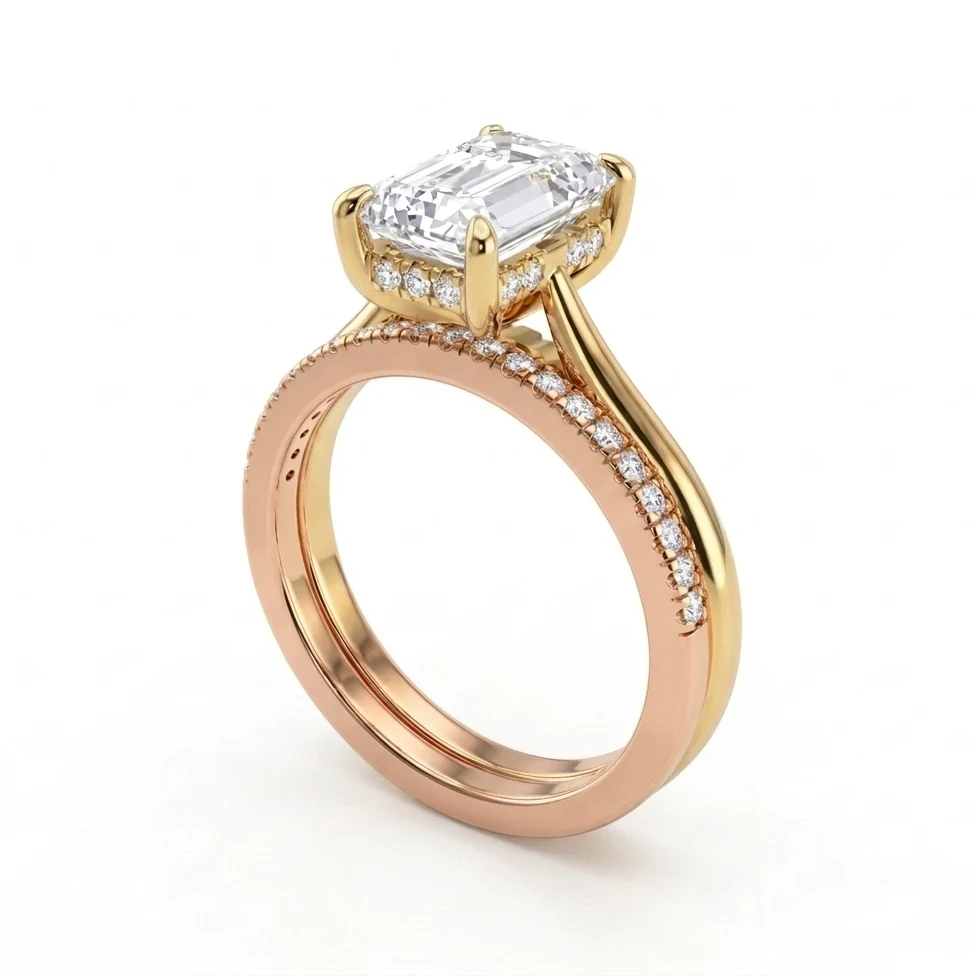
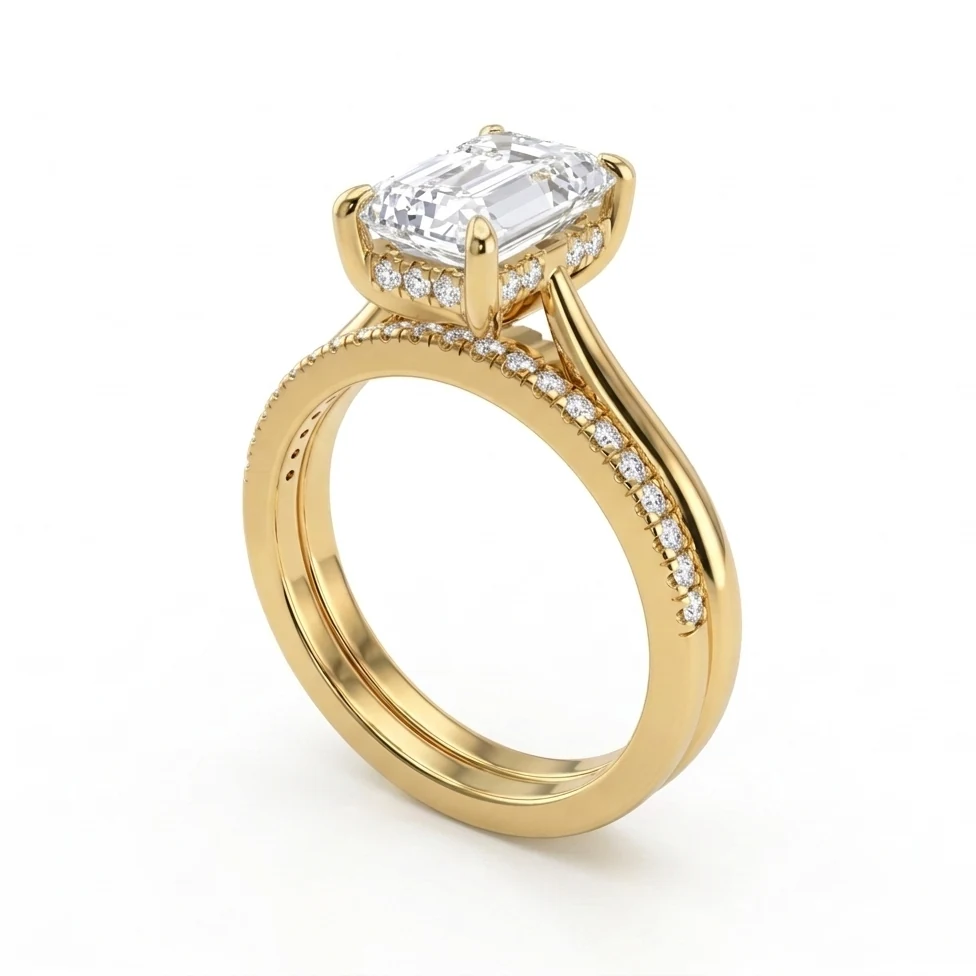
Describe a variation, like a different centre stone or a brushed finish, and HeyGema™ makes a new version of your render. Your original stays as it is, so you can show every option.
- Try a different stone, a brushed finish or a closer crop
- Every version is saved, so you can show them side by side
- Each variation uses 1 render
Rendering every day? Pro gives you 65 a month.
Same tool, no daily limit. Or take Starter: 25 a month for $20. Upgrade from inside the render tool whenever you need it.
- 65 renders a month
- No daily limit
- No logo, or your own logo
- Cancel anytime
FAQ
Frequently asked questions
Can't find your answer? Write to us and we'll get back to you.
Jewelry rendering guides
Clear answers to the questions jewelers ask about rendering, from your CAD file to an image your client says yes to.
- Jewelry rendering: how jewelers turn CAD into photorealistic renders
- Ring rendering: how to render an engagement ring from your CAD
- Diamond rendering: how to make diamonds look real in jewelry renders
- Jewelry render lighting and backgrounds: why gold looks flat and how to fix it
- Jewelry rendering services: when to hire one and when to render yourself
- How to render a Rhino .3dm jewelry file online, for free
- How to turn a jewelry CAD screenshot into a photorealistic render
- Best online jewelry rendering tools in 2026
- Jewelry rendering software compared: KeyShot, V-Ray, Rhino, Blender and online tools
- Can ChatGPT or Gemini render my jewelry CAD?
- How to show a client a custom ring before it's made
- Jewelry CAD and rendering glossary
Get started