Press HeyGema on the Rhino toolbar and your piece opens in HeyGema at the angle of your viewport. Pick the metal and stones, then render. You don't export a file or set up a single light.
In Rhino, type PackageManager, search for heygema and click Install.
Using Rhino 7? Download the Rhino 7 version
The plug-in is free, and so is the HeyGema free plan.
How it works
In Rhino, type PackageManager, search for HeyGema and click Install. Restart Rhino and the HeyGema toolbar shows up.
HeyGema opens in its own window next to Rhino, with the visible piece loaded at your viewport's angle. Select objects first if you only want to send those.
Click Pick in Rhino, select the center stone, the side stones or the metal in your viewport and press Enter. The choice is saved in your file for next time.
Choose the metal, the stones and the angle, then press Render. Changed the model? Press Update and the piece comes back with your settings kept.
Made for Rhino
The plug-in hands the piece to HeyGema on your own computer. Your .3dm never reaches our servers. Only pictures of the view you render are sent.
The camera of your active viewport comes with the piece, so the first render matches what you were looking at.
On Windows and Mac. Rhino 8 and 9 open HeyGema in its own window. Rhino 7 opens it in your browser.
Sign in once with your HeyGema account. Your renders and projects are the same ones you see at render.heygema.com.
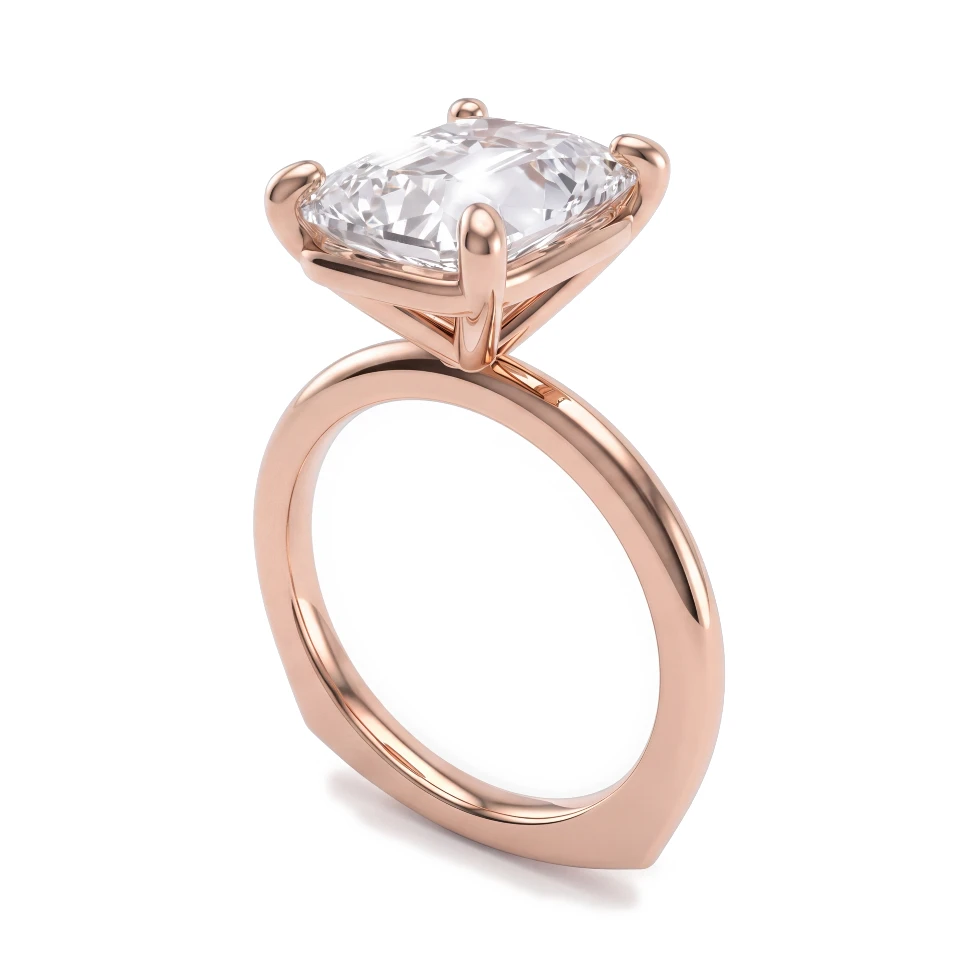
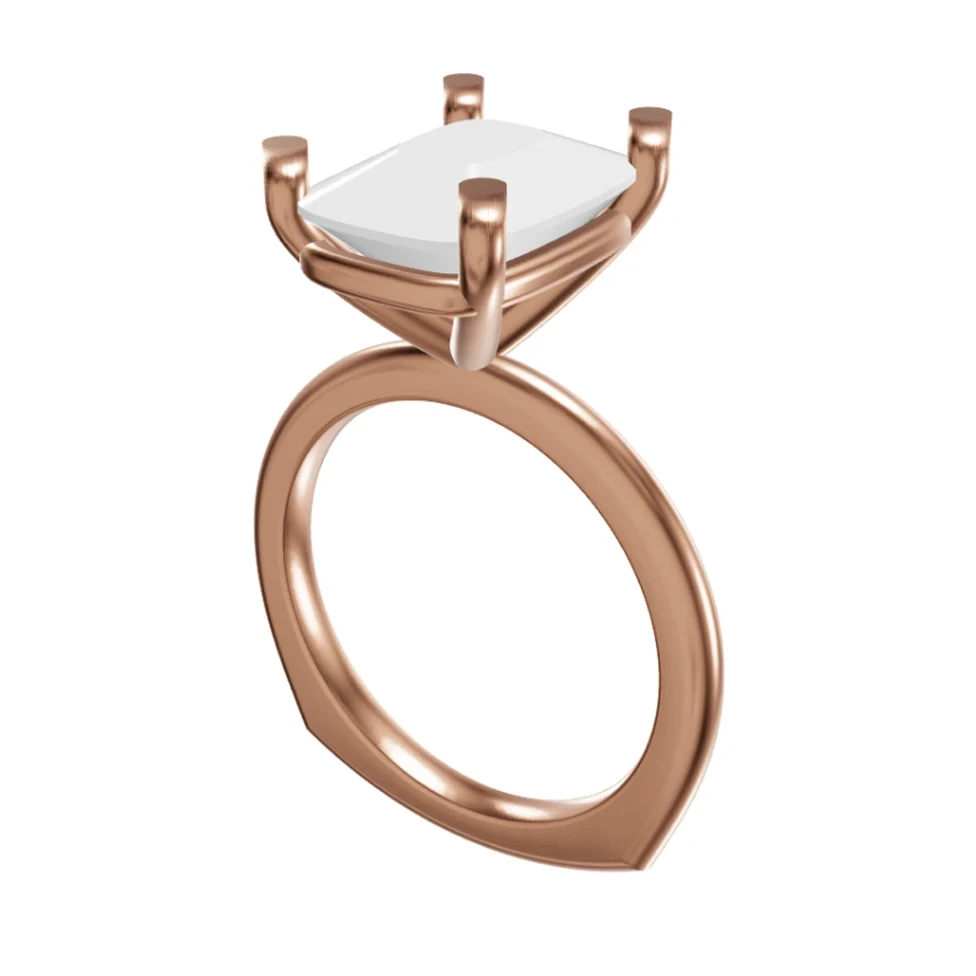
Upload a .3dm file in your browser and render it the same way.
Clear answers to the questions jewelers ask about rendering, from your CAD file to an image your client says yes to.