How to turn a jewelry CAD screenshot into a photorealistic render
By HeyGema · Updated · 5 min read
In short
Take a clean screenshot of your model in any CAD program, upload it to HeyGema, choose the metal and stones, and generate. HeyGema keeps the angle and framing of your screenshot and returns a photorealistic render of the same piece. The cleaner the screenshot, the better the render.
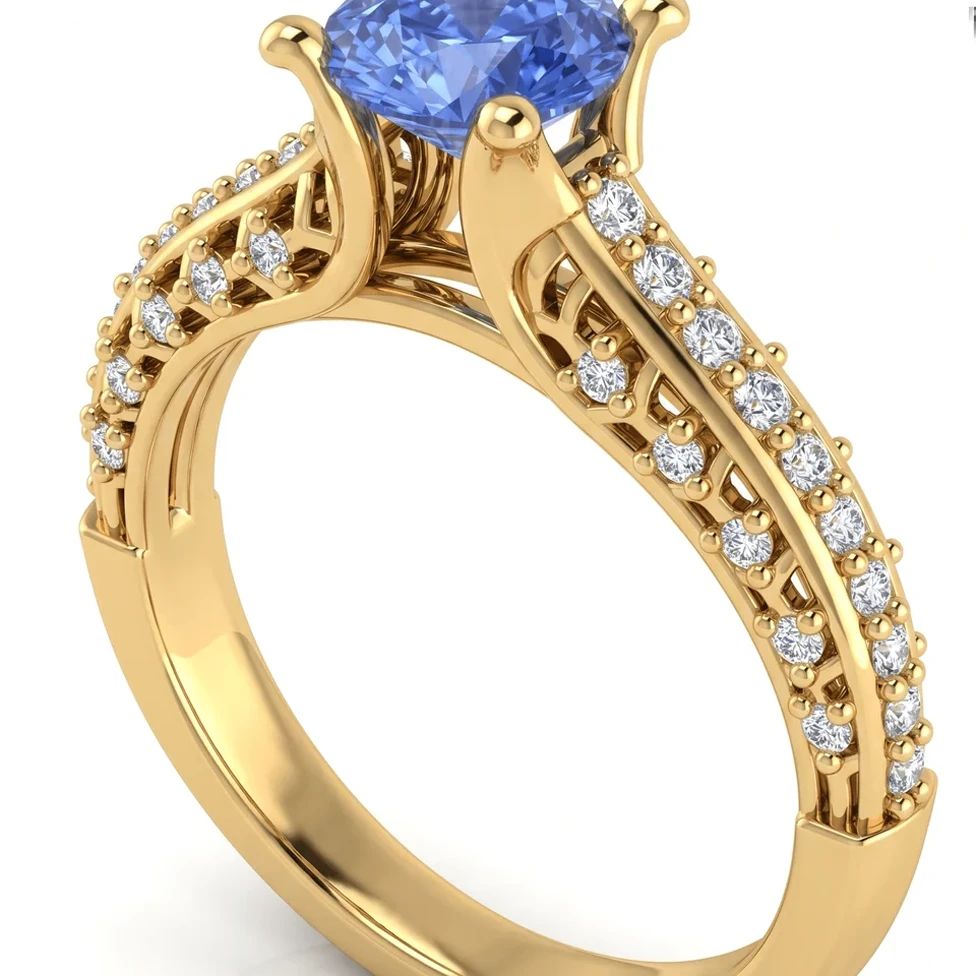
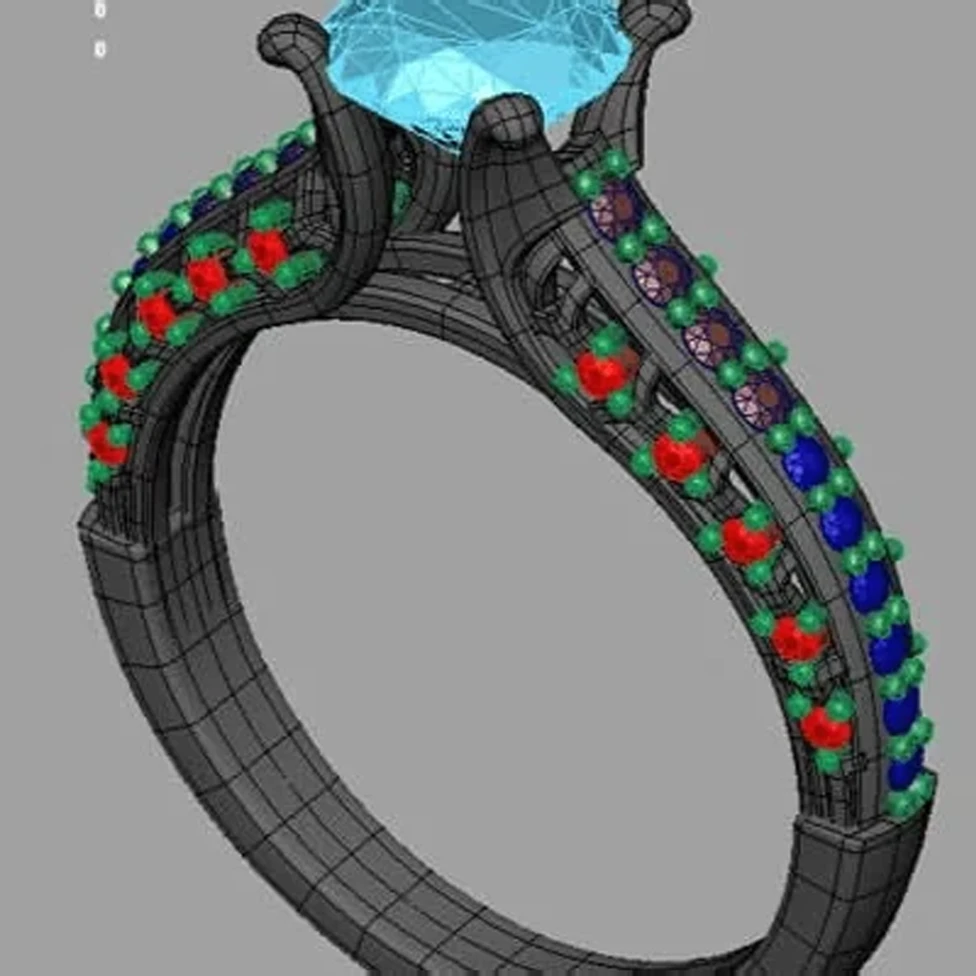
A screenshot is the shortest path from any CAD program to a render. It works whether you design in Rhino, MatrixGold, RhinoGold, JewelCAD, 3Design, ZBrush, Fusion or Blender, because HeyGema only needs to see the piece.
How to take a screenshot that renders well
- Fill the frame. Zoom so the piece takes up most of the image, with a little margin. Crop out toolbars, menus and the cursor.
- One piece, one view. Capture a single view. Four viewports in one image give four small pieces.
- Plain background. A plain viewport background works best. Hide the grid and the axes.
- Stones in their own color. Most jewelry CAD shows stones in a different color from the metal. Keep it that way: it helps the render tell them apart.
- Frame the angle you want. The render keeps the angle and framing of your screenshot, so set up the view you want the client to see.
Step by step
- 1
Capture the view
Set up the angle in your CAD program and take a screenshot. On Windows press Win+Shift+S; on a Mac press Cmd+Shift+4.
- 2
Upload it
Open render.heygema.com, sign in and upload the image (PNG, JPG or another image format, up to 10 MB). On a phone you can pick it from your photos.
- 3
Pick the metal and stones
Choose yellow, white or rose gold, then the center and side stones. Add notes such as milgrain or a brushed finish if you need them.
- 4
Generate
HeyGema renders the same piece from the same angle.
- 5
Compare, refine, download
Check the render against your screenshot. Use Refine to try creative variations in plain words, then download the version you like.
Which CAD programs work?
Any program that shows your model on screen: Rhino, MatrixGold, RhinoGold, JewelCAD, 3Design, CounterSketch, ZBrush, Fusion, Blender and others. If you work in Rhino or MatrixGold, uploading the .3dm file also gives you angle presets and control over each part.
A screenshot render vs a traditional render
A traditional render in KeyShot or V-Ray means assigning materials, setting up lights and an environment, and placing a camera. It's powerful, and it takes practice. A screenshot render skips the setup: you choose the metal and stones from menus and HeyGema handles the materials, the light and the background. For catalog shots where you control every reflection, a full renderer is still the right tool: see jewelry rendering software compared.