KeyShot jewelry rendering: settings for gold, diamonds and lighting
By HeyGema™ · Updated · 6 min read
In short
For jewelry in KeyShot, switch the lighting preset to Jewelry (or raise ray bounces to 16 or more), use the Metal material for gold, a Gem material for stones with a refractive index near 2.42 and dispersion on, a studio HDRI with strong light and dark areas, and a long camera lens. Most fake-looking KeyShot jewelry comes from a flat environment or too few bounces. For everyday client renders, an online render tool such as HeyGema™ skips the setup. It's one route to jewelry rendering.
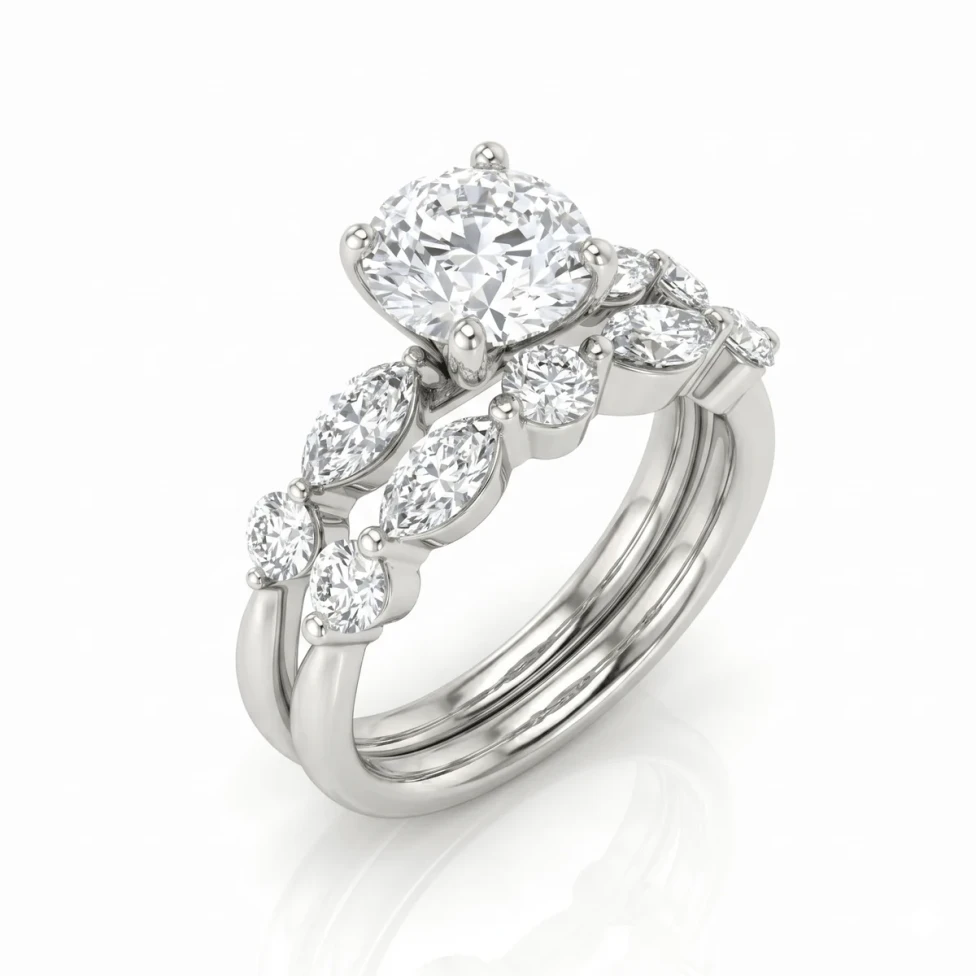
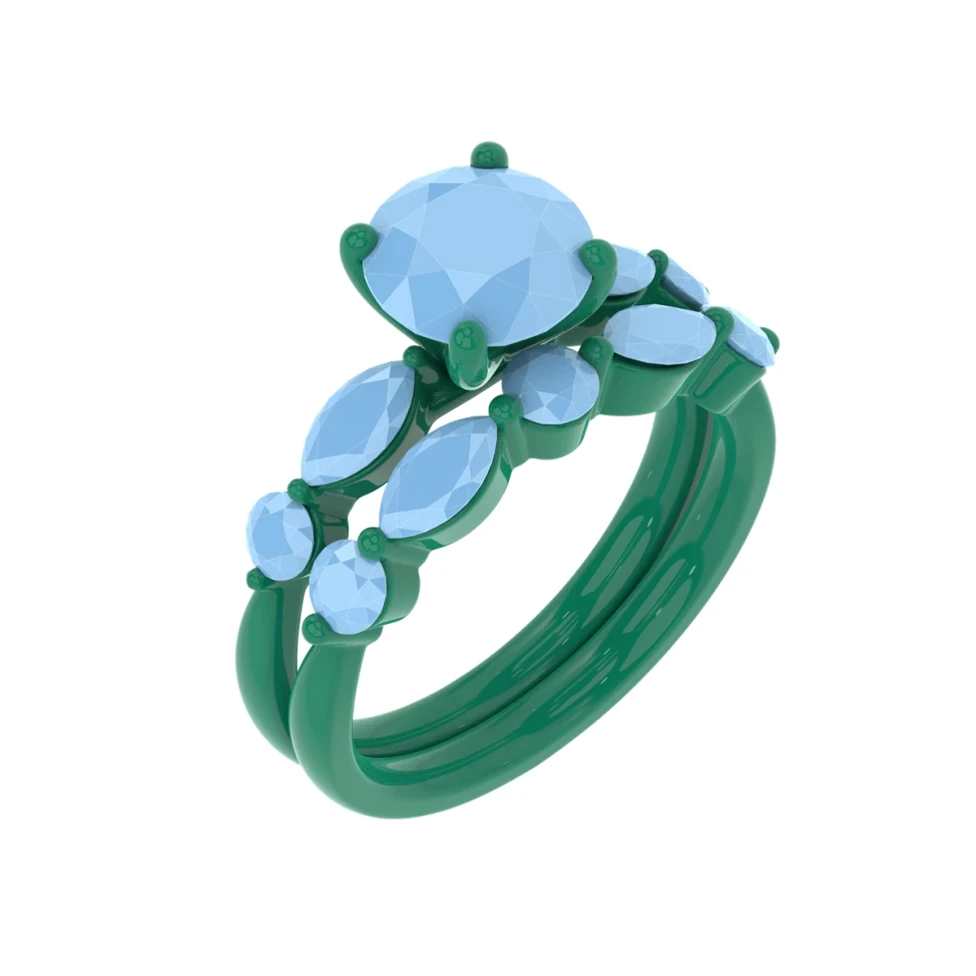
KeyShot is the renderer many jewelry studios use for catalog images. It can make excellent jewelry rendering work, but its defaults are set for products like phones and chairs, not for polished gold and diamonds. A handful of settings make the difference.
Before you start: the model
- Separate parts. Keep metal, center stone and side stones as separate objects or layers so each can get its own material.
- Closed stone shapes. Gems need closed, faceted solids. An open or smooth mesh renders as glass, not as a cut stone.
- Clean import. Bring a Rhino .3dm in directly, and check that small parts like prongs and pavé came through.
Lighting preset and ray bounces
In the Lighting settings, choose the Jewelry preset. It raises ray bounces and turns on the options gems need. If you set it by hand, use 16 ray bounces or more: light inside a diamond bounces many times before it leaves, and too few bounces turn the pavilion dark or dull.
Materials
- Gold
- KeyShot material: Metal
- What to set: Pick the gold color, keep roughness very low for high polish
- Brushed or matte finish
- KeyShot material: Metal
- What to set: Raise roughness a little, or add a brushed texture
- Diamond
- KeyShot material: Gem
- What to set: Refractive index about 2.42, dispersion on (Abbe around 55)
- Colored stones
- KeyShot material: Gem
- What to set: Set the color and refractive index of the stone you're quoting
- Enamel or paint
- KeyShot material: Paint
- What to set: Glossy, with the color you need
Our diamond rendering guide explains why the refractive index and dispersion matter, and how brilliant and step cuts should look.
Environment
- A studio HDRI with contrast. Gold and diamonds show what they reflect. An environment with bright panels and dark areas gives them highlights and depth.
- Dark areas on purpose. If the metal looks flat, add dark planes or rotate the HDRI until dark reflections cross the piece.
- Background separate from lighting. Use a plain white or light gray backplate for a web store, and keep the lighting HDRI for the reflections.
- A soft ground shadow. Turn on ground shadows so the piece sits on the surface instead of floating.
The jewelry render lighting guide covers backgrounds and shadows in more detail.
Camera
Use a long lens (a narrow field of view) so the ring isn't distorted, and set the angles clients expect: front, ¾ and side. Keep the depth of field shallow only if the whole piece stays sharp.
Save your lighting, materials and camera as a scene template. The next piece then starts from settings that already work.
Common KeyShot jewelry problems
- White, glassy diamonds. The environment is too evenly bright, or the stones use glass instead of a gem material.
- Black pavilions. Too few ray bounces.
- Gold that looks like plastic. Roughness too high, or nothing dark to reflect.
- Missing small stones. Pavé lost on import. Check the scene tree against the CAD.
- Noisy gems. Raise the sample count for the final image.
When KeyShot is more than you need
KeyShot is worth learning for catalog and campaign images. For a client approval, setting up materials, lighting and a camera for each piece is the slow part. HeyGema™ takes a 3D file or a CAD screenshot and renders it with jewelry lighting and diamonds already set, with no rendering skills. Many jewelers use both. See jewelry rendering software compared.